C1.1. My Clients Page
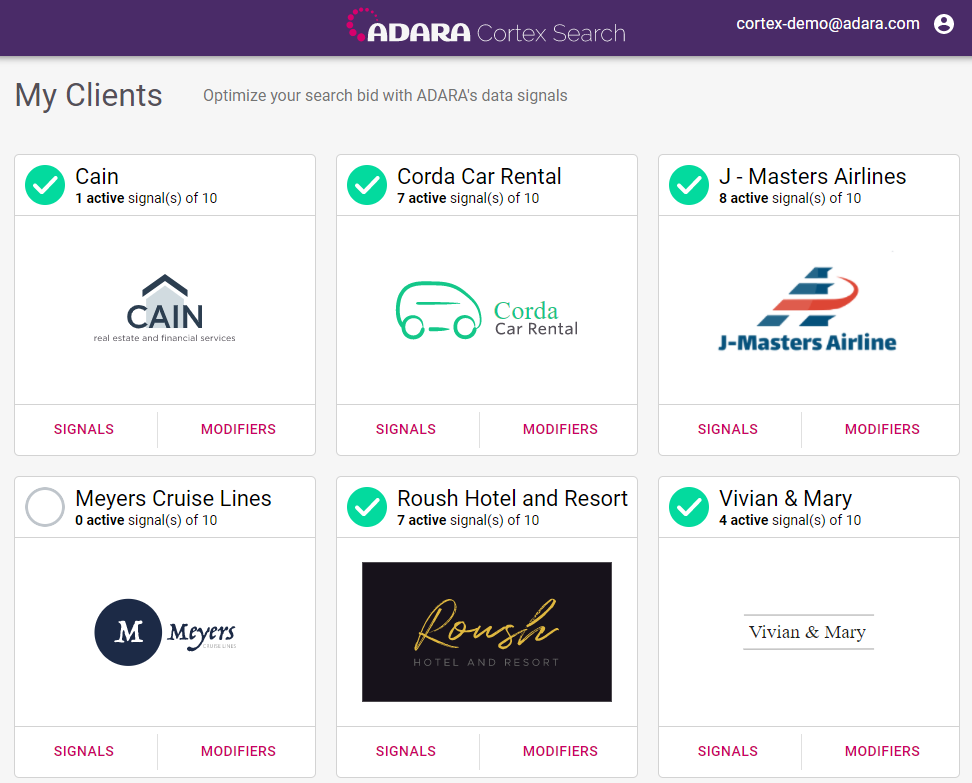
Log in to your account and Cortex Search displays the My Clients page. This page shows client cards, one for each client configured for your account. To add a new client, address issues with existing clients or accounts, contact an ADARA Customer Success Representative directly or email support@adara.com.
C1.2. Client Cards
Each client card provides a significant amount of information at a glance, as well as an interface for more information.
C1.2.1. Information
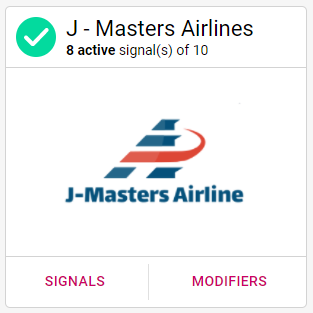
The logo at the center of the card allows quick identification without having to scan text.
The headline at the top of the card shows the total number of unique Signals that have been activated, as well as the number of signals for which your account quota is provisioned. In the example above, there are 8 active Signals of the 10 allowed by quota.
The green or white circle in the upper left corner of the card shows the status of the client is: 1.) green when the client is set up with active channels or 2.) white when the client is not yet set up and has no active channels.
C1.2.2. Interface
For fully configured clients the bottom left of the card displays Signals. Select this to view the C2.1. Signals Card (Signals View). For clients not yet fully configured and set up, the bottom center of the card displays Contact Us which links to an email to support@adara.com.
For fully configured clients the bottom right of the card displays Modifiers. Select this to view the C4. Bid Modifiers View. For clients not yet fully configured and set up, the bottom center of the card displays Contact Us which links to an email to support@adara.com.