
In the Catalog, the My Audience, and the Active tabs, ADARA provides a set of options to drill down with the audiences that are displayed and control the order and type of data displayed. These filter, tag, search, and display options vary based on whether you are viewing the Catalog tab, the My Audience tab, or the Active tab. These options will contain elements from the following table:
Use these options singly or in combination. If too few or no audiences are displayed, use fewer criteria or more expansive filter options.
Search filters and display options persist in a session even when you navigate between Catalog, My Audience, and Active tabs. If you have set filters, search, or display options within a tab, those options will appear when next you display that tab.
Select the reset filters icon on the Catalog tab to clear previously selected filters and view options.
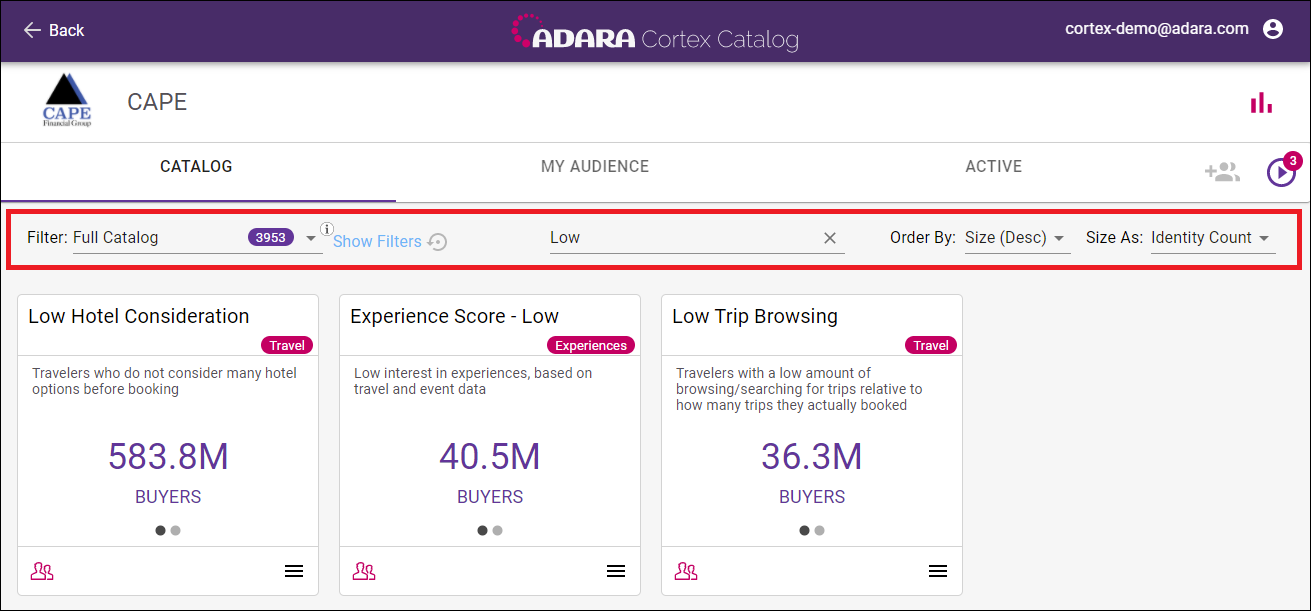
Cortex Catalog - Catalog Tab example with filter, tag, and display options highlighted
5.4.1. Filters
Select the drop-down Filter menu to view categories of audiences that Cortex Catalog will display.
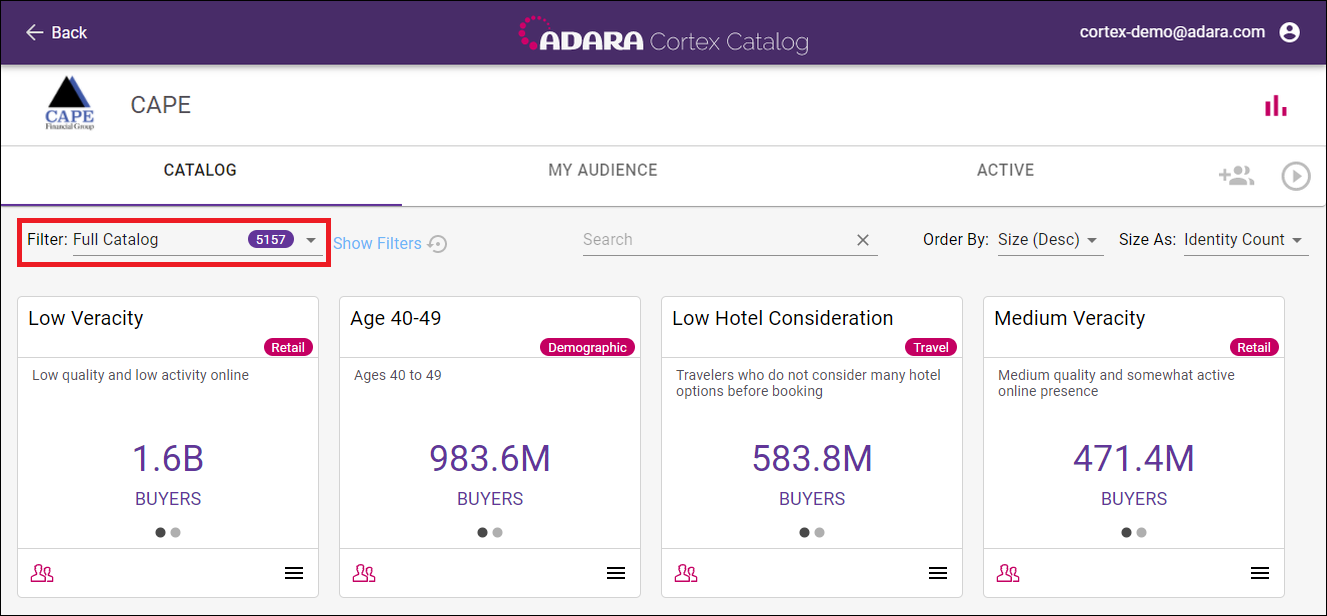
Cortex Catalog - select Filter drop-down menu under the Catalog tab
Select a category of audiences that Cortex Catalog will display: Full Catalog, Travel Audiences, Finance Audiences, Retail Audiences, Experience Audiences, and Demographic Audiences. See 15. Audience Definitions for more details on industry-specific solutions.
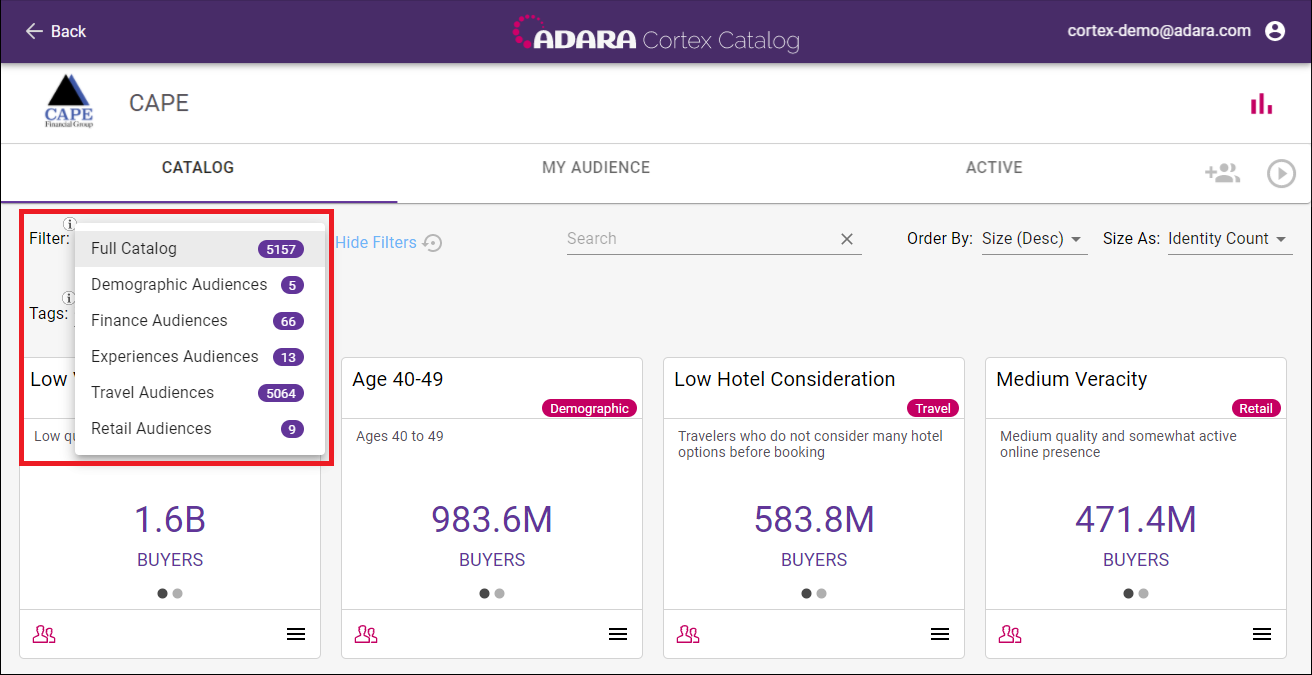
Cortex Catalog - select an audience category to filter by under the Catalog tab
Cortex Catalog shows the number of the audiences within each of the filter categories by displaying a white/purple count to the right of each audience category.
5.4.2. Tags
Select Show Filters to expand filter options to include Tags.
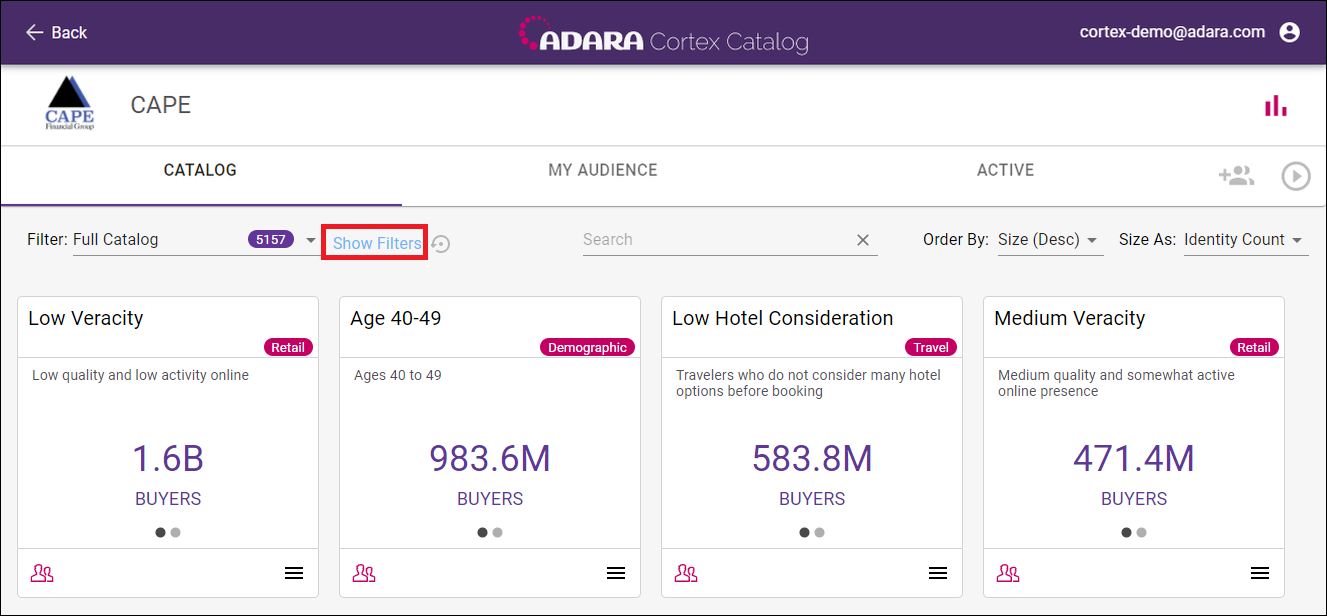
Cortex Catalog - Show Filters under the Catalog tab
Select row(s) from the drop-down Tags menu to choose which categories of audiences display. Cortex Catalog allows viewing the any combination of tag categories; select each row to add tag categories, or select the circled X adjacent to the list of elected tag categories to remove a particular category. Select the X at the right of the elected tag categories to deselect all tags.
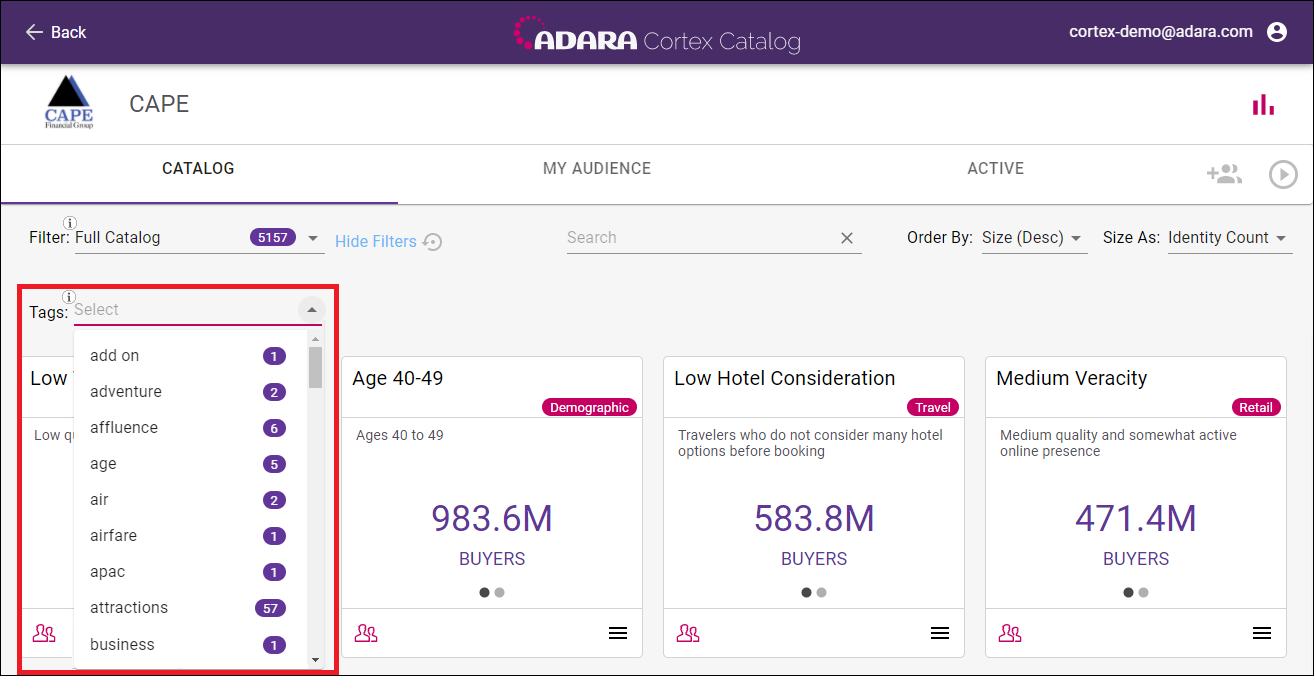
Cortex Catalog - expanded Tags under the Catalog tab;
Cortex Catalog shows the number of the audiences within each of the tag categories by displaying a white/purple count to the right of each audience category.
Select Hide Filters to collapse filter options to hide Tags.
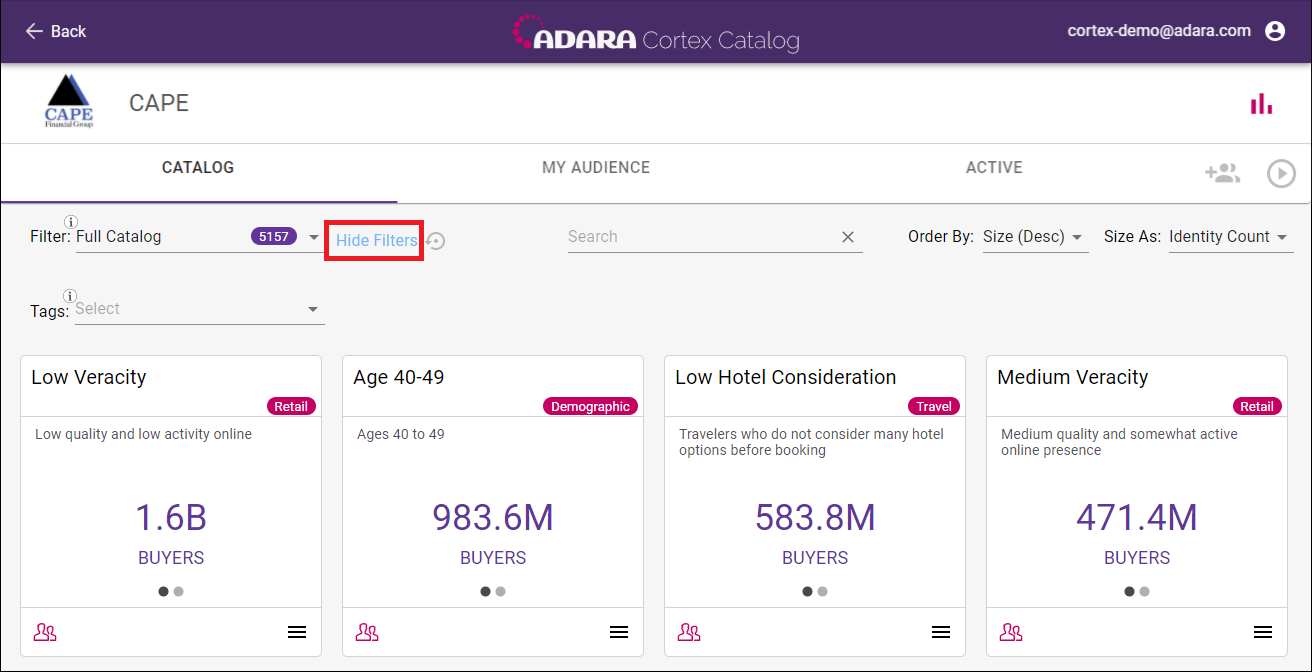
Cortex Catalog - Hide Filters under the Catalog tab

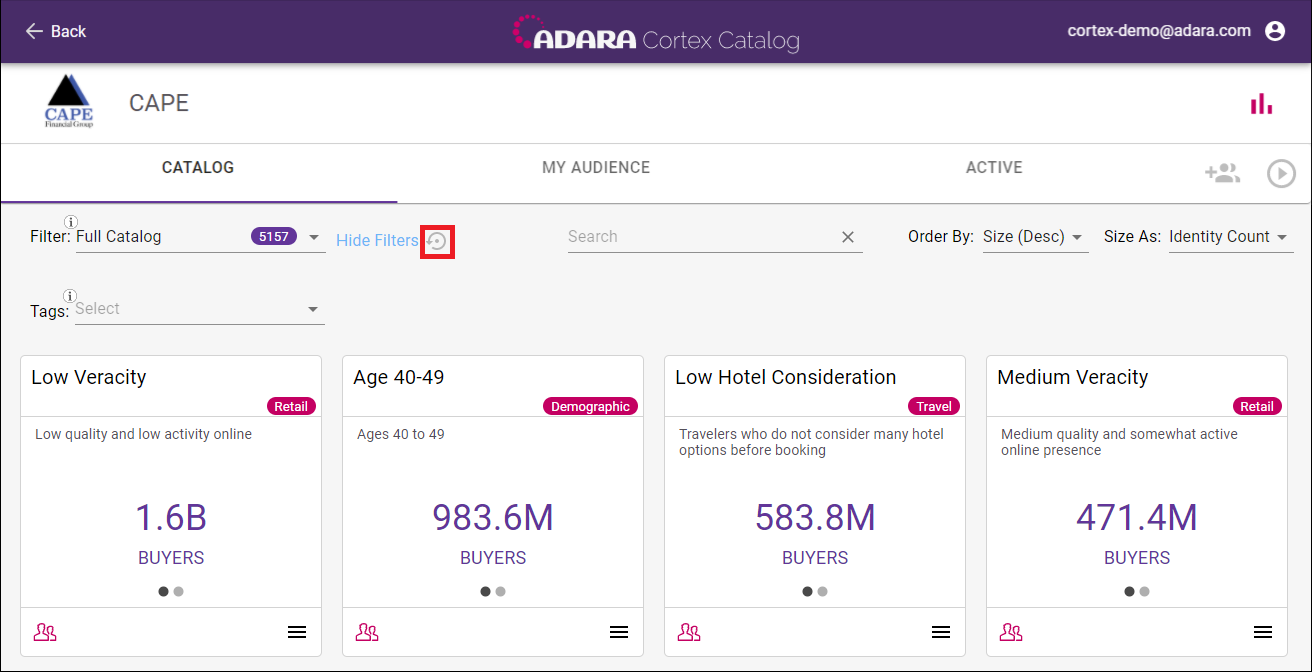
Cortex Catalog - search and view options for the Catalog tab; Reset Filters
5.4.3. Show
Select the drop-down Show menu to view categories of audiences that Cortex Catalog will display.
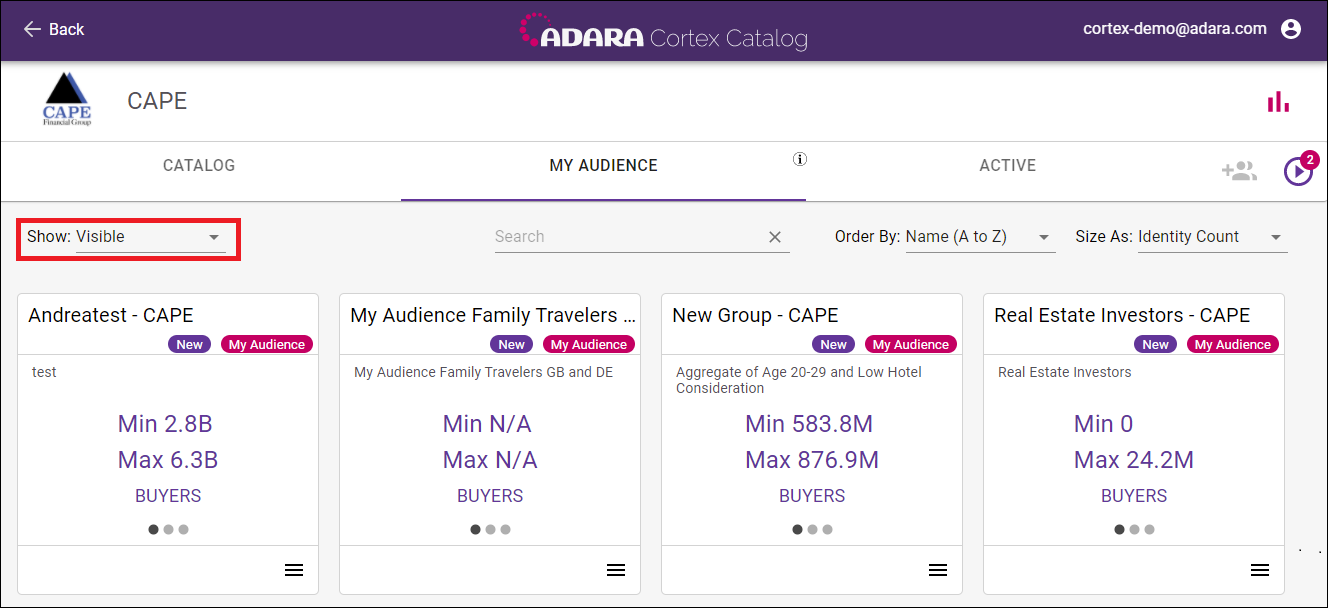
Cortex Catalog - select Show drop-down menu under the My Audience tab
Select a category of audiences that Cortex Catalog will display: Visible, Hidden, and All. Use the 5.5. Drop Down Menu to toggle individual audiences or combined audiences as Visible or Hidden.
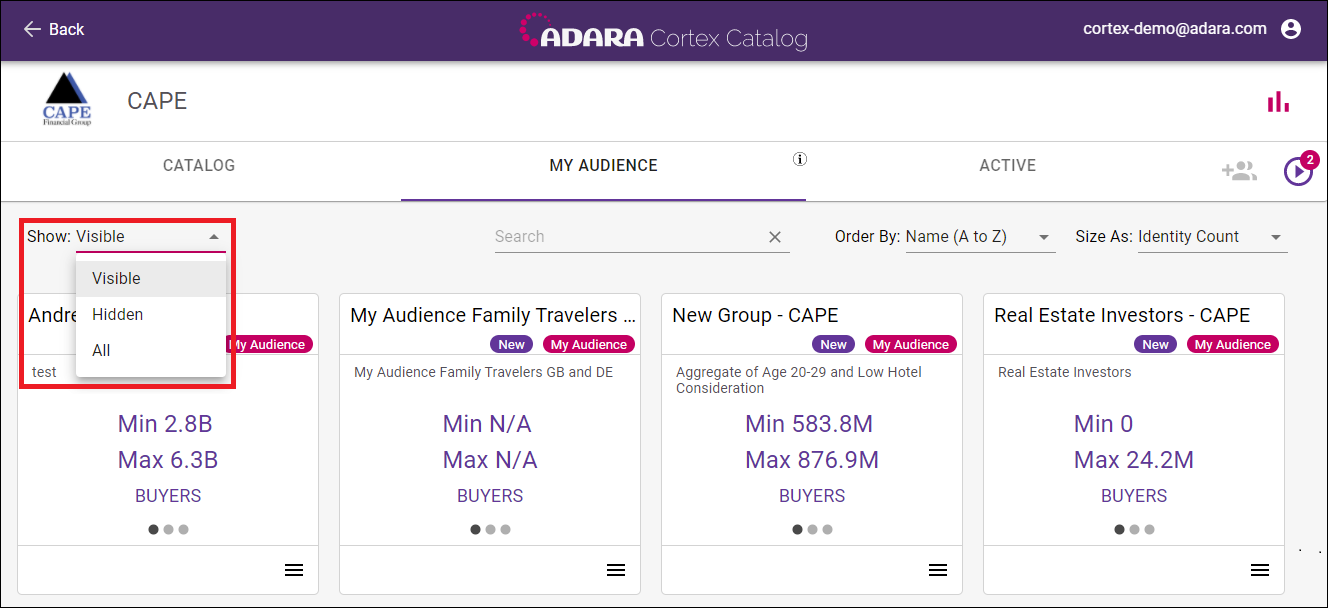
Cortex Catalog - select between Visible, Hidden, or All under the My Audience tab
5.4.4. Search
Enter text into the Search field to search the catalog for audiences containing that text.
5.4.5. Order By
Use Order By to select between order in which the audience cards display: Size (Asc), Size (Desc), Name (A to Z), Name (Z to A), Created (Oldest to Newest), and Created (Newest to Oldest).
5.4.6. Size By
Use Size By to toggle between the counts displayed: Identity Count and Hashed Email Count.